Add visual explainers
Let CueClip suggest animated on-screen explainers for the key points in your video, or add your own, then edit their text, style them and drag them into place.
Generate with AI
- Click Explainers under Visuals in the tools on the right.
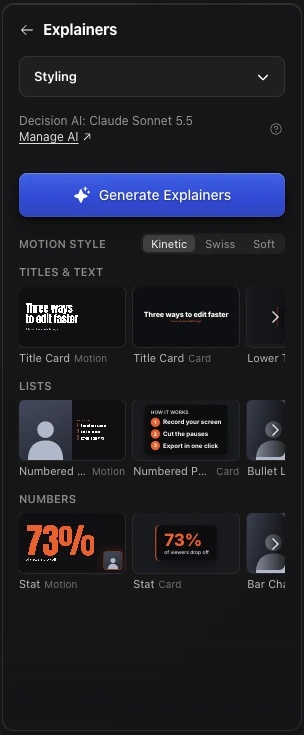
- Click Generate Explainers. CueClip reads the whole video, then suggests explainers for key points, steps, numbers, quotes and comparisons. Click Generate More for another round.
- Click the play button on a suggestion to preview it, then click Add to put it on the timeline. Remove the ones you don't want.
Suggestions use AI credits, and run on the Editing Model you picked in Manage AI.
Add your own
Under Add your own, explainers are grouped into rows: Titles & text, Lists and Numbers. Hover over one to watch it play. Motion explainers sit beside the classic Card version of the same type.
- Move the playhead to where the explainer should appear.
- Pick an explainer and type your text. The live preview fills anything you haven't typed yet from the sample.
- It's added at the playhead, for 4 seconds (6 for lists), and stops short of the next explainer.
- Motion style switches every Motion explainer between Kinetic Bold, Swiss Grid and Soft Editorial.
- Some Motion explainers slide in beside you and push your video to the side, then let it back when they finish.
- You can also click an empty spot on the explainer row of the timeline to add one right there.
Edit the text
Click the pencil (Edit text) on an explainer to change its words. You get one field per part of the card, such as Title, Subtitle, each item or a quote's attribution. Playback pauses while you type, so the card stays on screen.
Place and style it
- Position: pick a spot on the grid, or drag the card anywhere in the preview. It snaps to the middle and the edges as you drag, and the grid then shows Dragged.
- Styling: change the Font and Accent colour, or turn on Transparent background. Whoosh sounds adds a very quiet whoosh when an explainer pushes your video aside; turn it off there.
- Timing: drag the explainer on the timeline to move it, or drag its edges to change how long it stays up.
Questions
Do explainers appear in the exported video?
Yes. They are rendered into the export exactly where you placed them.