Auto-zoom and manual zooms
Apply zooms that follow your cursor and clicks, then fine-tune each zoom on the timeline at 1.25×, 1.5× or 2×.
Apply auto-zoom
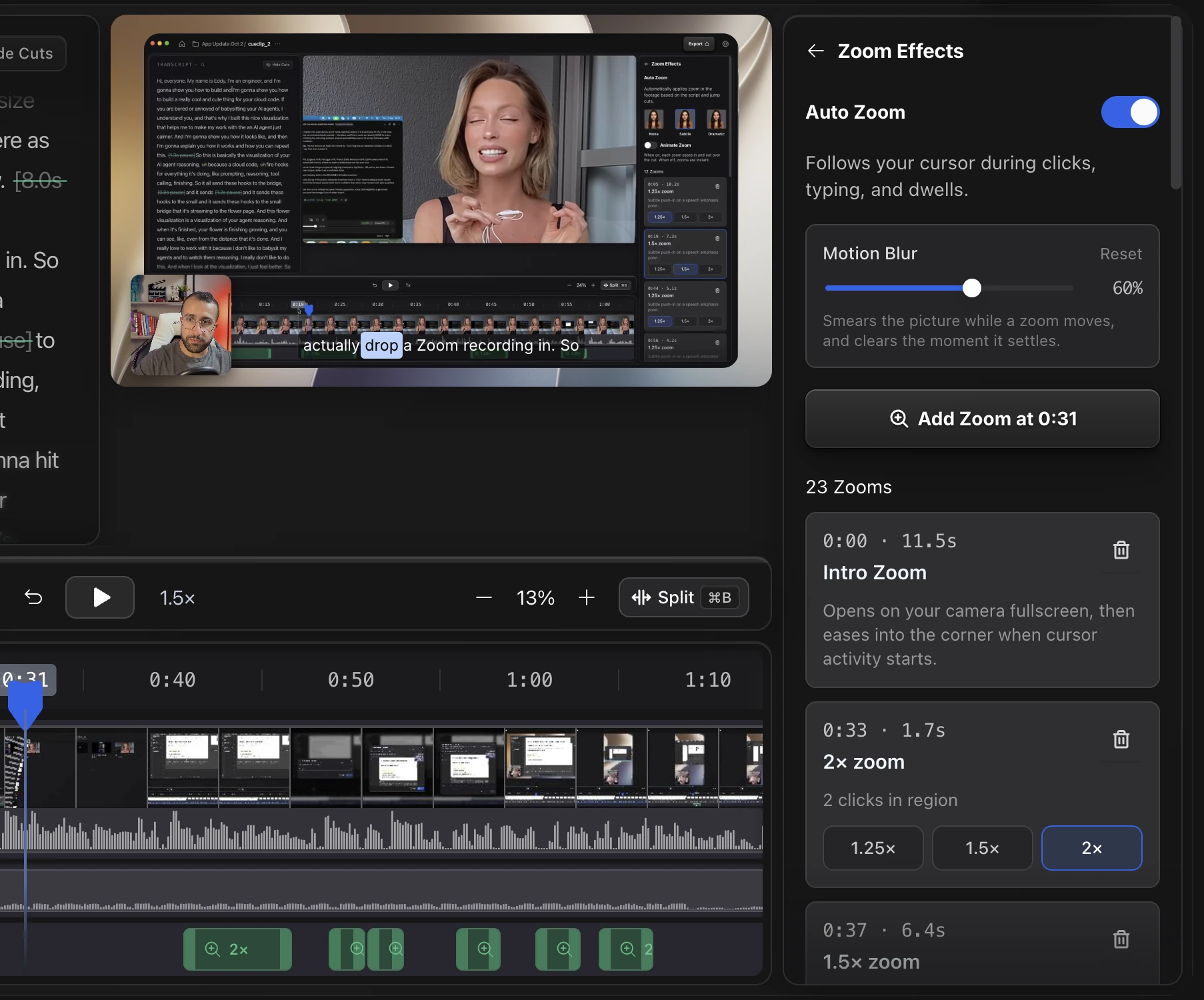
- Open Zoom Effects in the tools on the right.
- Turn on Auto Zoom. It follows your cursor during clicks, typing and dwells.
- Play it back. Each zoom shows as a green band on the timeline and as a card in the panel.
Tune a zoom
Click a zoom card in the panel, or right-click its band on the timeline, to change how close it is:
| Level | Zoom |
|---|---|
| Light | 1.25× |
| Medium | 1.5× |
| Close | 2× |
Drag a band to move it, drag its edges to resize it, or delete it if you do not want it.
Motion blur
Use the Motion Blur slider in Zoom Effects for a smoother, more cinematic feel. Reset puts it back to the default. Heavier blur makes exports take longer.
Questions
Does auto-zoom work on a video with no clicks?
It works best on screen recordings made in CueClip, which capture your cursor and clicks. For imported footage, add zooms by hand on the timeline.