Cueclip

Great starts at 0:00

Features
Pricing
Download

Get started

  • What is CueClip?
  • Record your screen, camera and mic
  • Import a video you already recorded
  • Combine a screen recording and a camera recording

Auto-edit

  • Auto Edit: clean a video in one pass
  • Remove filler words (um, uh, like)
  • Shorten gaps and dead air
  • Remove retakes automatically
  • Retake cue words: mark bad takes out loud

Edit by hand

  • Edit your video by editing the transcript
  • Right-click to mute, speed up, split or delete
  • Fix names and terms with the Transcript Dictionary

Captions, zoom & sound

  • Add captions
  • Auto-zoom and manual zooms
  • Remove background noise and enhance your voice
  • Turn a long video into Shorts, Reels and TikToks

Export & share

  • Export your video
  • Export XML to Final Cut, Premiere or DaVinci Resolve
  • Export caption files (.srt and .vtt)
  • Share a video with a link

Account & AI

  • AI credits and bringing your own key

Help Center / Auto-edit

Auto Edit: clean a video in one pass

Auto Edit removes filler words, retakes and long pauses in one pass, and shows every cut so you can review before you export.

Updated 2026-10-10

Give me 60 seconds to 10X your editing speed

What it does

Auto Edit runs three cleanups together: it removes filler words, cuts retakes, and shortens pauses. The Auto Edits panel lists every cut with its time and the words around it, and shows a total such as “28 Cuts” plus how much manual editing time it saved.
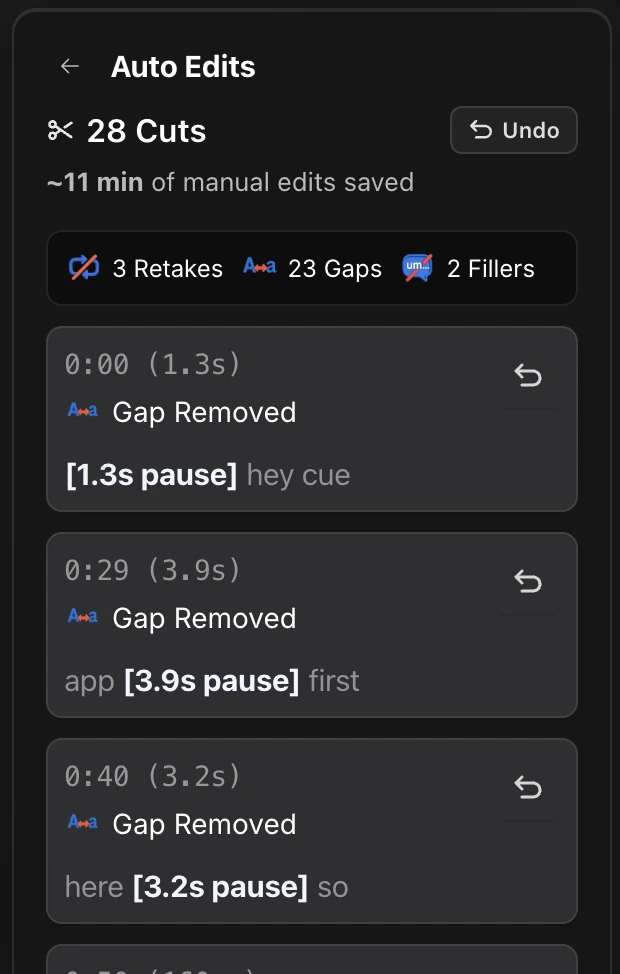
The Auto Edit tools in the CueClip editor

Review before you trust it

  1. Run Auto Edit, or run each tool on its own: Remove Filler Words, Remove Retakes, Shorten Gaps.
  2. Play through the result and scroll the cut cards in the Auto Edits panel.
  3. Click the undo arrow on any card to restore that cut, or Undo at the top to reverse the whole run.
  4. Export when it sounds right.

Run the tools one at a time the first time. You will learn what each one catches, and which settings suit the way you speak.

Each tool

  • Remove filler words: um, uh, like, you know
  • Shorten gaps: trims pauses to a length you choose
  • Remove retakes: keeps the best take of a repeated line
  • Retake cue words: say a phrase out loud to mark a bad take

Questions

Is Auto Edit destructive?

No. It marks cuts on top of your original footage, and you can restore any of them.

How long does Auto Edit take?

Transcription and analysis usually take a few minutes for a long video. Time depends on length and your connection, because transcription and AI analysis run through an API.

Related

Remove filler words (um, uh, like)Shorten gaps and dead airRemove retakes automatically

Still stuck? Email support@cueclip.app.

← Combine a screen recording and a camera recordingRemove filler words (um, uh, like) →
0:00
0:10
0:20
0:30
0:40
0:50
1:00
Cueclip

Clean Recordings in Minutes

Support

ContactHelp CenterTerms of ServicePrivacy PolicyAffiliatesPricing
BlogCueClip vs DescriptBest Auto-Edit Tools 2026CueClip vs Screen StudioCueClip vs CapCutCueClip vs LoomCueClip vs Opus ClipCueClip vs SubmagicCueClip vs RiversideCueClip vs Premiere ProCueClip vs Final Cut Pro

How To

How to Edit Course Lectures FastFor Maven InstructorsFor Skool CreatorsFor Udemy InstructorsFor Skillshare Instructors

© 2026 CueClip (by Mokline)

TinyLaunch Badge
Featured on DailyPings

P.S. It's CueClip, not Qclip — but we'll let it slide.

CUECLIP