Quick answer
If you make talking tutorials or educational YouTube videos on a Mac, use a recorder that also edits: CueClip records screen, camera, mic, and system audio, then automatically removes filler words, retakes, and pauses and adds auto-zoom and captions. For short, visually polished product demos, Screen Studio. For training videos with quizzes or SCORM, Camtasia. For free capture you’ll edit elsewhere, OBS Studio or QuickTime.
Why the recorder matters less than the edit
Almost any Mac app can capture a sharp 4K screen. What separates tutorial creators who publish weekly from those who stall is the edit afterwards: the ums, the restarted sentences, the ten seconds you spent finding a menu. A 15-minute tutorial can easily take an hour or more to clean up by hand. So this list ranks recorders by how close they get you to a publishable video, not by capture specs alone.
I built CueClip after teaching 18,000+ students and spending far too many evenings cutting my own lessons, so treat my ranking of it with appropriate suspicion. I’ve tried to be concrete about where the other tools are the better choice.
What a YouTube tutorial recorder needs
- Screen, camera, mic, and system audio in one recording, so you can show an app and its sounds while you talk.
- Automatic zoom on what you click, so small UI text is readable on phones.
- Speech cleanup — filler words, retakes, long pauses — because that’s where most tutorial editing time goes.
- Captions for viewers watching muted and for accessibility.
- Clean 4K export without a watermark, plus vertical clips for Shorts.
Comparison table
| Tool | Best for | Auto-zoom | Editing | Price |
|---|---|---|---|---|
| CueClip | Talking tutorials where editing out mistakes is the slow part | Yes, follows clicks and cursor | Transcript editing + automatic speech cleanup | Free to try; $149 lifetime or $29/month |
| Screen Studio | Short, visually polished app demos | Yes | Visual polish (zoom, cursor, backgrounds) | Subscription |
| Camtasia | Training videos with annotations and LMS export | Manual zoom-and-pan animations | Full manual timeline | Annual subscription |
| Descript | Cross-platform teams editing by transcript | Limited | Transcript editing (AI actions use credits) | Subscription + AI credits |
| Loom | Quick walkthroughs you share by link, not publish | No | Basic trimming | Free tier + per-seat plans |
| OBS Studio | Free, highly configurable capture if you already have an editor | No | None (recording only) | Free |
| QuickTime Player | One-off recordings with zero setup | No | Trim only | Free, built in |
1. CueClip — best for talking tutorials and educational YouTube
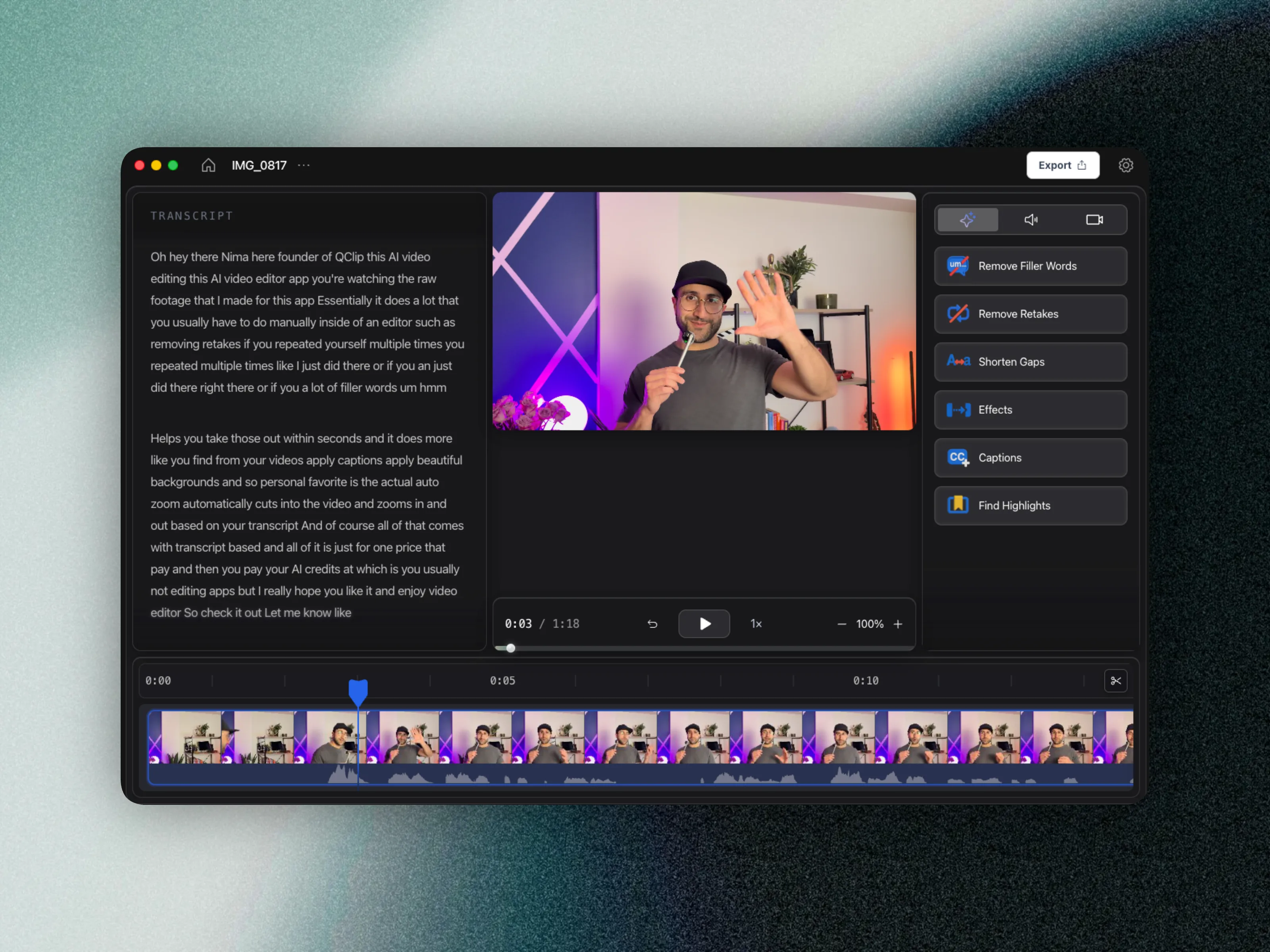
CueClip is a native Mac app that records your full screen or a single window, your camera, your mic, and system audio in one take. When you stop, the recording opens straight in the editor. It transcribes the video and automatically cuts filler words, retakes (it keeps your last attempt at a sentence), and long pauses, and removes background noise. Auto-zoom follows your clicks and cursor, with adjustable motion blur, and you can restyle the camera overlay’s shape, layout, and position after recording.
From there you fine-tune by editing the transcript like a document, add captions and backgrounds, and export the full video in 4K plus highlight clips for Shorts. It’s free to download and try; exporting costs $149 once or $29/month, with AI credits included or your own OpenAI, Claude, or Deepgram key.
Pros: record-to-publish in one app; the editing is automatic rather than manual; lifetime pricing option.
Cons: Mac only for now (Windows is in progress); not built for live streaming or multi-guest interviews.
2. Screen Studio — best for polished short product demos
Screen Studio set the standard for good-looking Mac screen recordings: smooth automatic zoom, cursor smoothing, and attractive backgrounds with almost no effort. It’s the tool behind many SaaS launch videos. It’s Mac-only and switched to a subscription in 2026.
Its editing is about visuals rather than speech, so a 20-minute spoken tutorial full of restarts still needs a cleanup pass somewhere. Choose it for short demos where motion polish is the point. Full comparison: CueClip vs Screen Studio.
3. Camtasia — best for training videos with quizzes and SCORM
TechSmith’s Camtasia has been the default for corporate training for years. It records screen, webcam, and mic on Mac and Windows and has a full manual timeline with callouts, annotations, cursor effects, quizzes, and SCORM export. Since 2024 it’s an annual subscription.
It’s the right call when your videos live in an LMS. For YouTube tutorials, expect to do most of the speech cleanup by hand on the timeline.
4. Descript — best for cross-platform teams editing by transcript
Descript popularized editing video by editing text, and it includes screen recording. It runs on Mac, Windows, and the web and suits teams that collaborate on edits. AI features draw from monthly credits, which long tutorials can use up quickly. Comparison: CueClip vs Descript.
5. Loom — best for quick walkthroughs you share, not publish
Loom is the fastest way to record and send a link. It’s great for async updates and bug reports, but it isn’t built to produce a finished YouTube video. See CueClip vs Loom.
6. OBS Studio — best free recorder if you already have an editor
OBS is free, open source, and endlessly configurable with scenes, sources, and plugins. It records and streams, but doesn’t edit, so pair it with an editor. The learning curve is real for a simple tutorial.
7. QuickTime Player — best zero-setup option
QuickTime is already on your Mac (File → New Screen Recording, or Shift-Command-5). It’s fine for quick captures, but it doesn’t overlay your camera or edit beyond trimming.
Which one should you pick?
- Educational YouTuber or course creator talking over your screen: CueClip.
- Founder or marketer making a 60-second launch demo: Screen Studio.
- L&D team publishing to an LMS: Camtasia.
- Team on mixed Mac/Windows machines: Descript.
- Zero budget, happy to edit elsewhere: OBS Studio or QuickTime.
If you teach on video beyond YouTube, see also the best video editors for course creators and how to edit course lectures fast. We publish weekly CueClip tutorials on YouTube.
FAQ
What is the best screen recorder for YouTube tutorials on Mac?
For talking tutorials and educational videos, CueClip is the best fit on Mac because it records screen, camera, mic, and system audio, then automatically removes filler words, retakes, and silences and adds auto-zoom and captions, so you publish without a separate editing pass. Screen Studio is the pick for short, visually polished product demos, and Camtasia for training videos that need quizzes or SCORM.
Which Mac screen recorder has automatic zoom?
CueClip and Screen Studio both zoom in automatically based on where you click and move the cursor. CueClip also cleans up the spoken audio; Screen Studio focuses on visual polish. Camtasia supports zoom-and-pan, but you place it by hand.
Is there a free screen recorder for YouTube on Mac?
QuickTime Player is built into macOS and OBS Studio is free and open source. Both only record, so you need a separate editor to cut mistakes, add zooms, and caption the video. CueClip is free to download and try; exporting requires a lifetime license or monthly plan.
Do I need a separate video editor after recording a tutorial?
With QuickTime, OBS, or Loom, yes. With CueClip the recording opens straight in its editor, where filler words, retakes, and pauses are removed automatically and you fine-tune by editing the transcript.
Can I record my webcam and screen at the same time on Mac?
Yes. CueClip, Screen Studio, Camtasia, Descript, Loom, and OBS all record screen and camera together. CueClip lets you change the camera overlay's shape, layout, and position after recording.